4. Fund and send
An account has separate transparent and Ironwood balances. The treasury funds
faucet requests. We will use the default instance from Chapter 1 to see both
in action. Keep ths start --no-open running in its first terminal; run the
commands below in a second terminal. If you stopped it, start it again for a
fresh chain with the same five accounts.
The dashboard has Wallet, Explorer, and Network pages. Use ths open to bring it up. On desktop, the Mine button sits at the top of
each page; on a narrow screen you can always use ths mine. If the browser
blocks clipboard access, a copy button shows a notification with the value to
copy by hand.
First, observe the starting state
Open Wallet. Account 1 should show 5 Ironwood ZEC after startup;
Account 2 should have no funds. If balances have not appeared, inspect
GET /api/v1/status or follow troubleshooting before
sending. The server wallet snapshot, not a browser calculation from chain
history, supplies these balances.
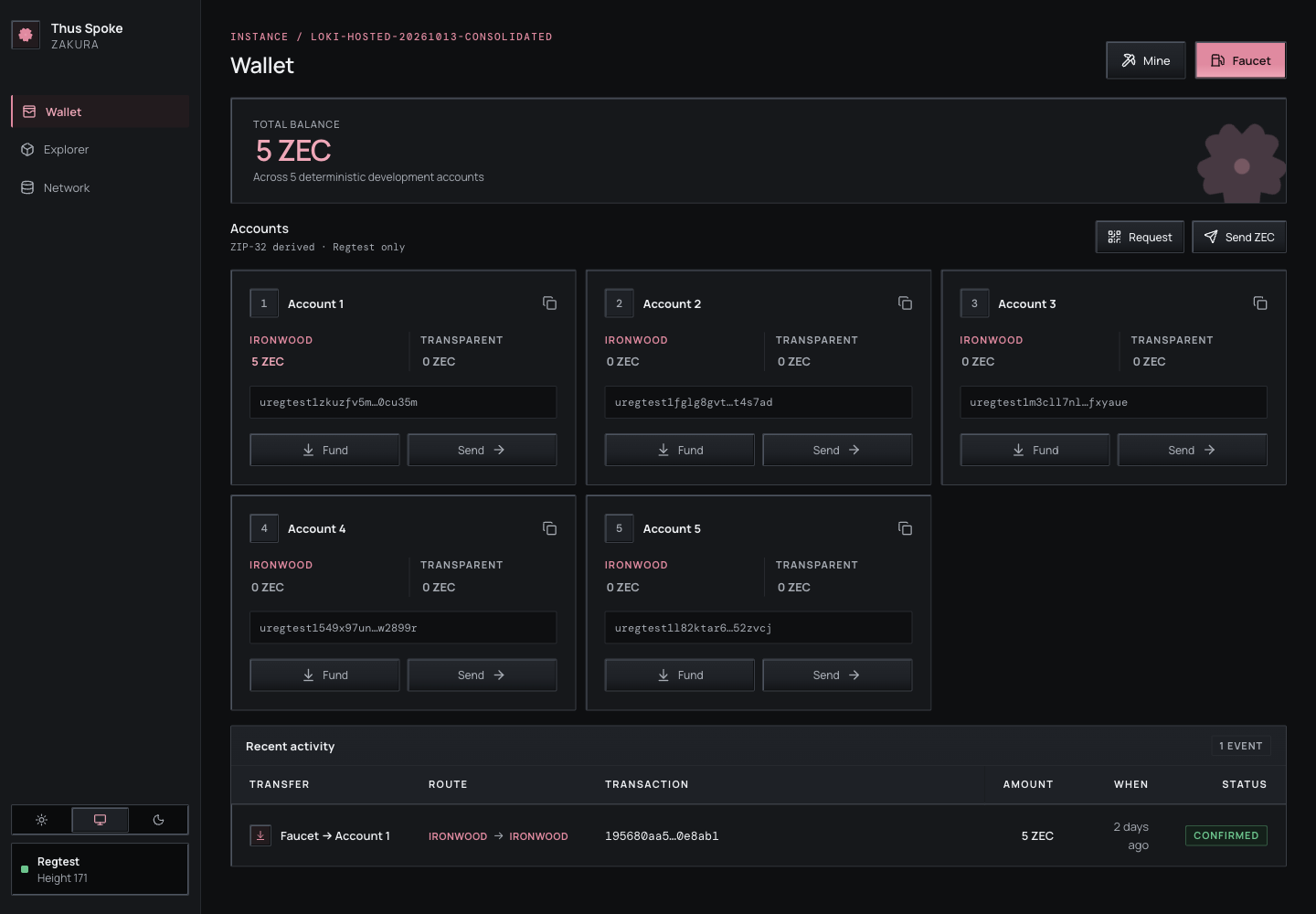
Select an account’s name to open its detail page. The full unified address and transparent address each have a copy button. The unified full viewing key is also shown and copyable when the server supplies it; an older server that omits the key simply has no viewing-key row. These pages cover development accounts 1–5 only.
Explorer also recognises those accounts. Searching the exact unified address of a local account opens the same account page. Known transparent addresses in transaction and address views have an Account N link beside their public chain information. Unknown transparent addresses keep their normal Explorer view; an unknown unified address still has no public chain-history page. Viewing keys appear only on the account detail page, not in Explorer rows or search results.
Two buttons open the faucet, and they are labelled differently. Faucet in the page header is the general one, and it only appears on Wallet — the Explorer and Network pages show just Mine. On each account card, Fund opens the same dialog with that account preselected.
Recent activity ages update while the page is idle. This only refreshes the displayed time; payment status still comes from the server.
Fund Account 2’s transparent pool
- Select Fund on Account 2’s card, or Faucet in the header.
- In the Fund an account or address dialog, choose Destination Account 2, Destination pool Transparent, and Amount (ZEC) 1. Select Add funds.
- Look at Recent activity for the transaction ID (
txid), the unique identifier of the broadcast transaction, and its status. Once confirmed and the wallet snapshot catches up, Account 2’s transparent balance should rise by 1 ZEC; its Ironwood balance is still separate.
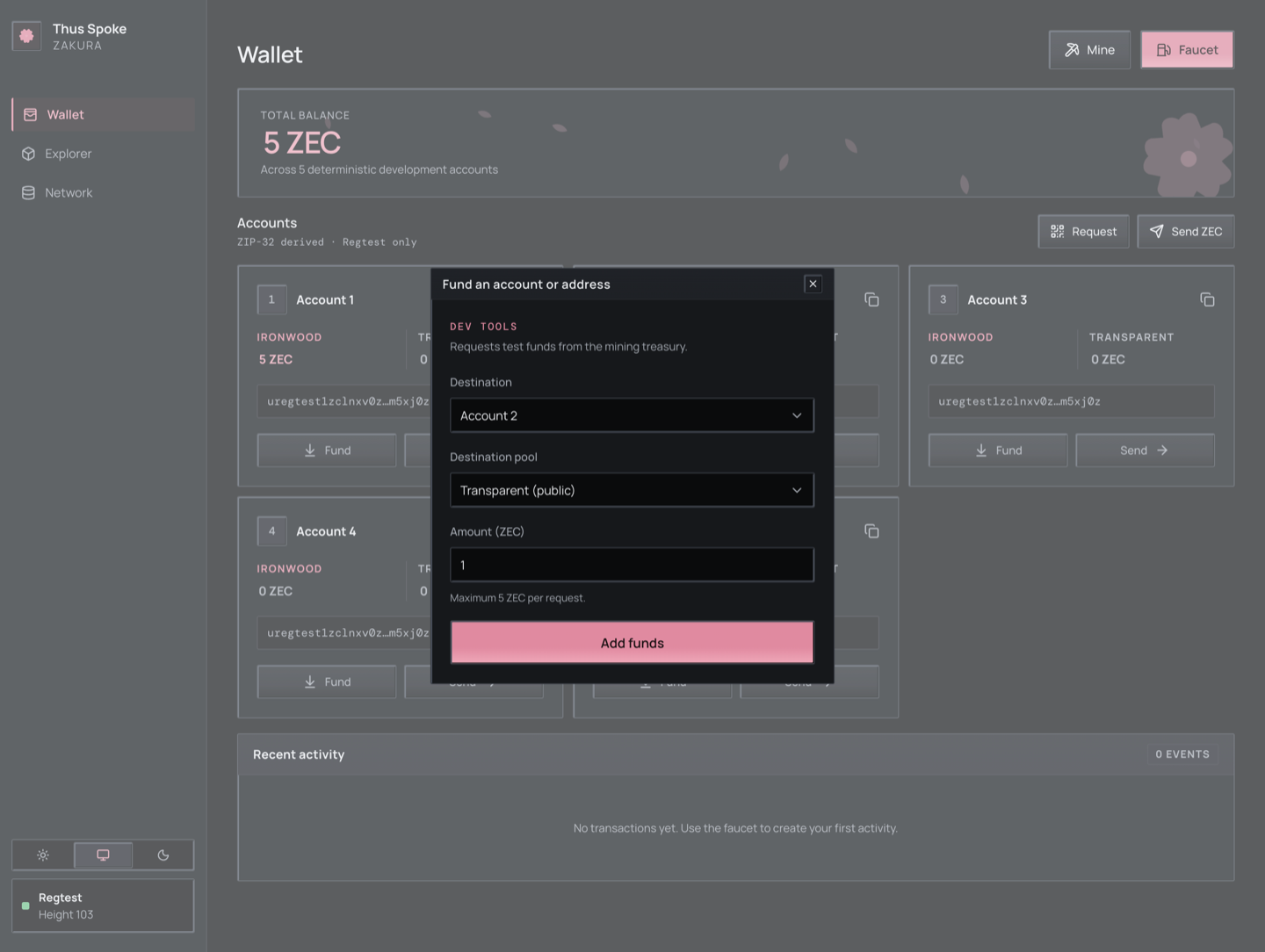
The same operation from the second terminal is:
ths wallet faucet --accounts 2 --amount 1 --pool transparent
Choose either the UI action or the CLI command if you want exactly one
faucet payment. Running both makes two payments. The faucet may mine extra
blocks first to mature and shield treasury rewards, then normally mines one
block to confirm the account payment. It accepts at most 5 ZEC per account
per request. If auto-mining fails, the recorded activity may remain
broadcast. Chapter 6
compares these callers.
Fund an external Regtest address
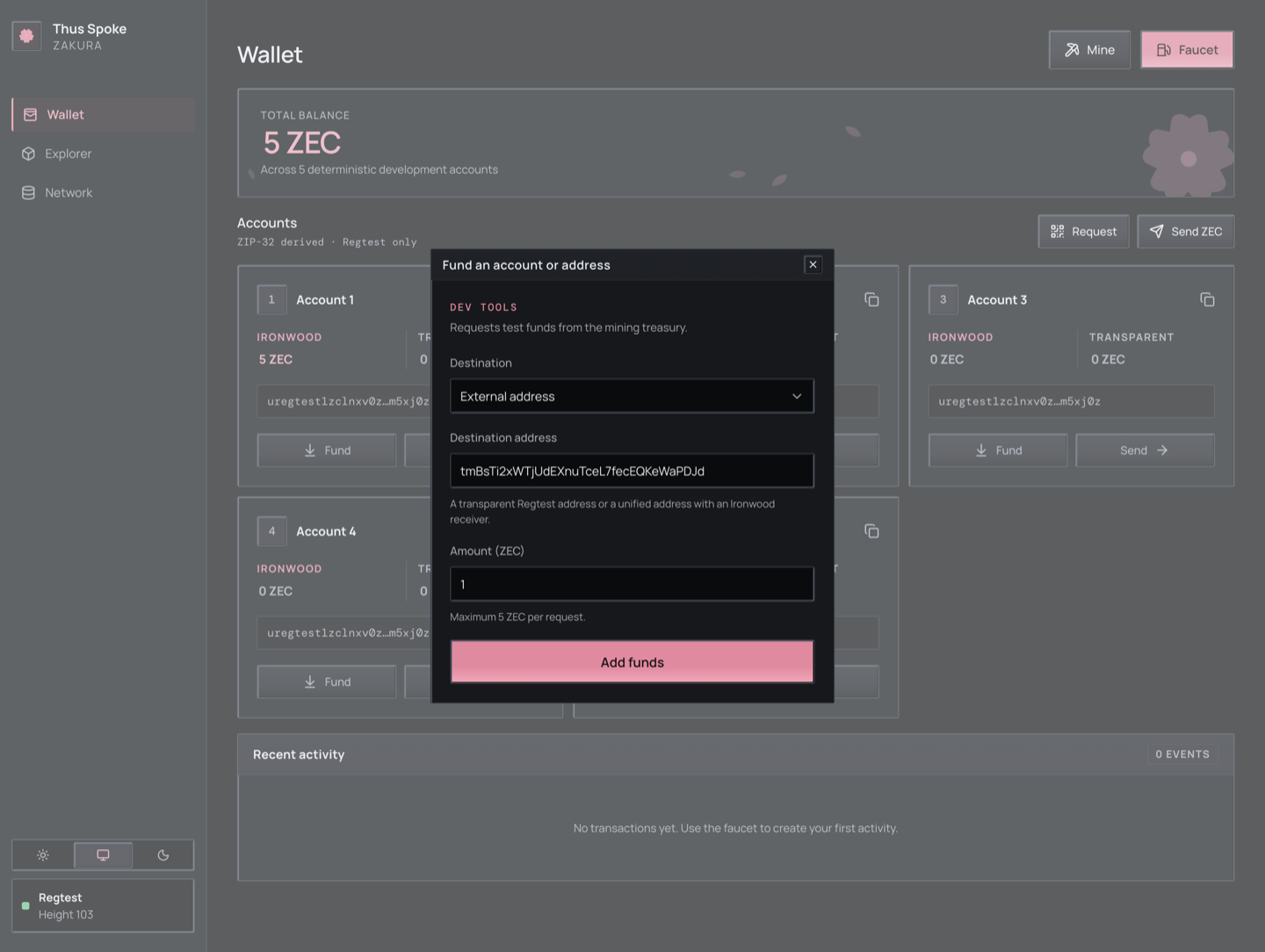
On Wallet, open Faucet and set Destination to External address. Enter a transparent or unified Regtest address, choose an amount of at most 5 ZEC, and select Add funds. The dashboard checks the address with the server before submitting the payment. If the response is lost, open Payments to resume the saved request with the same idempotency key. Do not start a second request for the same intended payment. The payment also appears in Recent activity, addressed rather than attributed to an account, so it stays discoverable after Payments no longer retains it.
Send Ironwood funds from Account 1 to Account 2
This is a different pool movement from the transparent faucet payment.
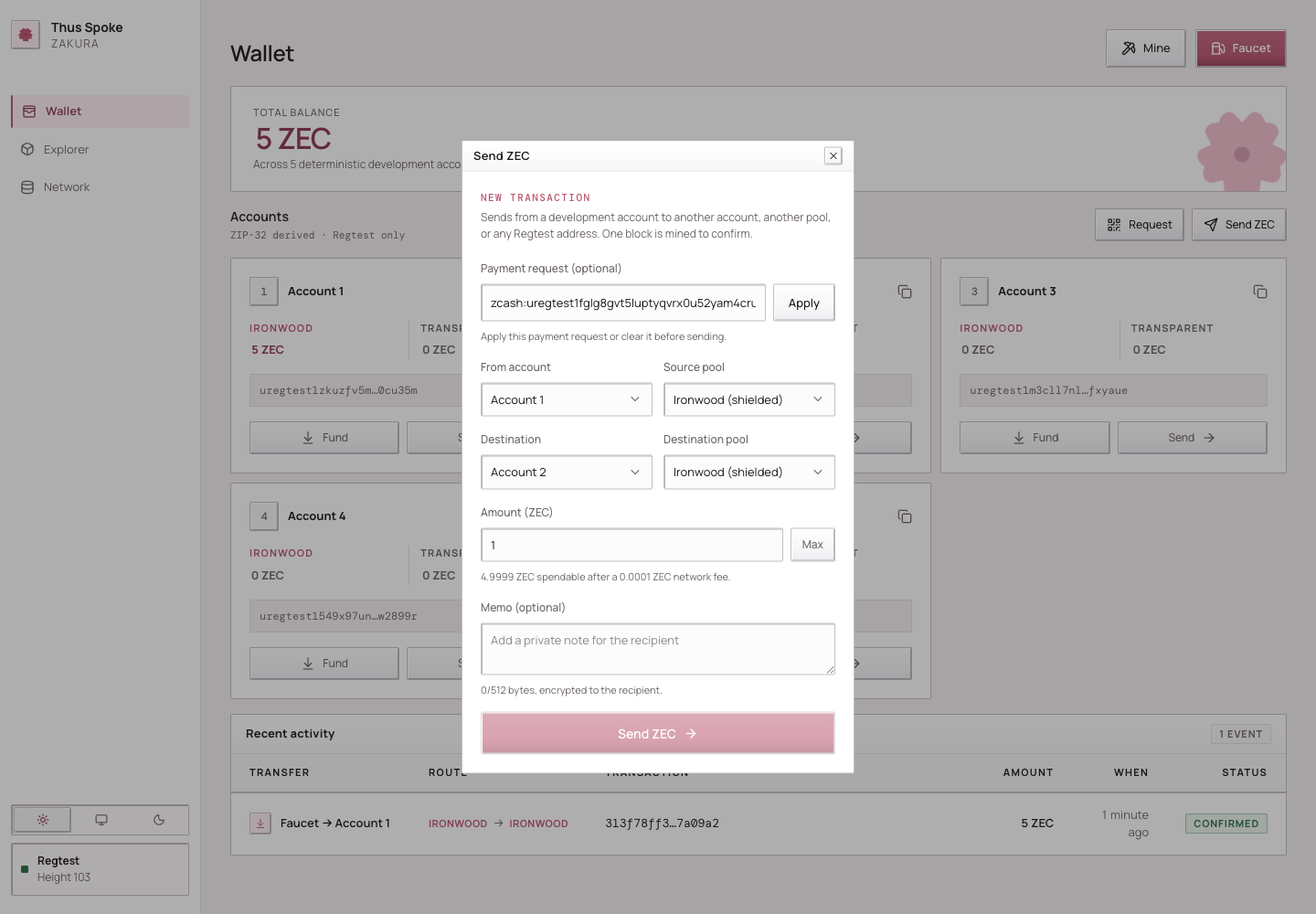
- On Wallet, select Send ZEC.
- Set From account to Account 1 and Source pool to Ironwood. Set Destination to Account 2 and Destination pool to Ironwood.
- Enter 1 in Amount (ZEC). Optionally enter
hello from Regtestin Memo (optional), then select Send ZEC. - Check Recent activity for the transaction ID and actual status. After confirmation and wallet settlement, Account 2 has 1 Ironwood ZEC and its earlier 1 transparent ZEC. Account 1’s Ironwood balance falls by 1 ZEC plus the fee; do not expect it to be exactly 4 ZEC.
The dialog does the fee arithmetic for you. As soon as it has an account and
a pool it asks POST /api/v1/send/quote, and the hint under the amount field
shows the quoted spendable amount and network fee for that account and pool.
The Max button fills in that spendable figure. An amount above it is rejected.
An amount above 21,000,000 ZEC, the maximum supply, is rejected before the
request is sent.
Closing Send while the fee check is pending cancels that submission. A payment already submitted keeps running and remains available through Payments.
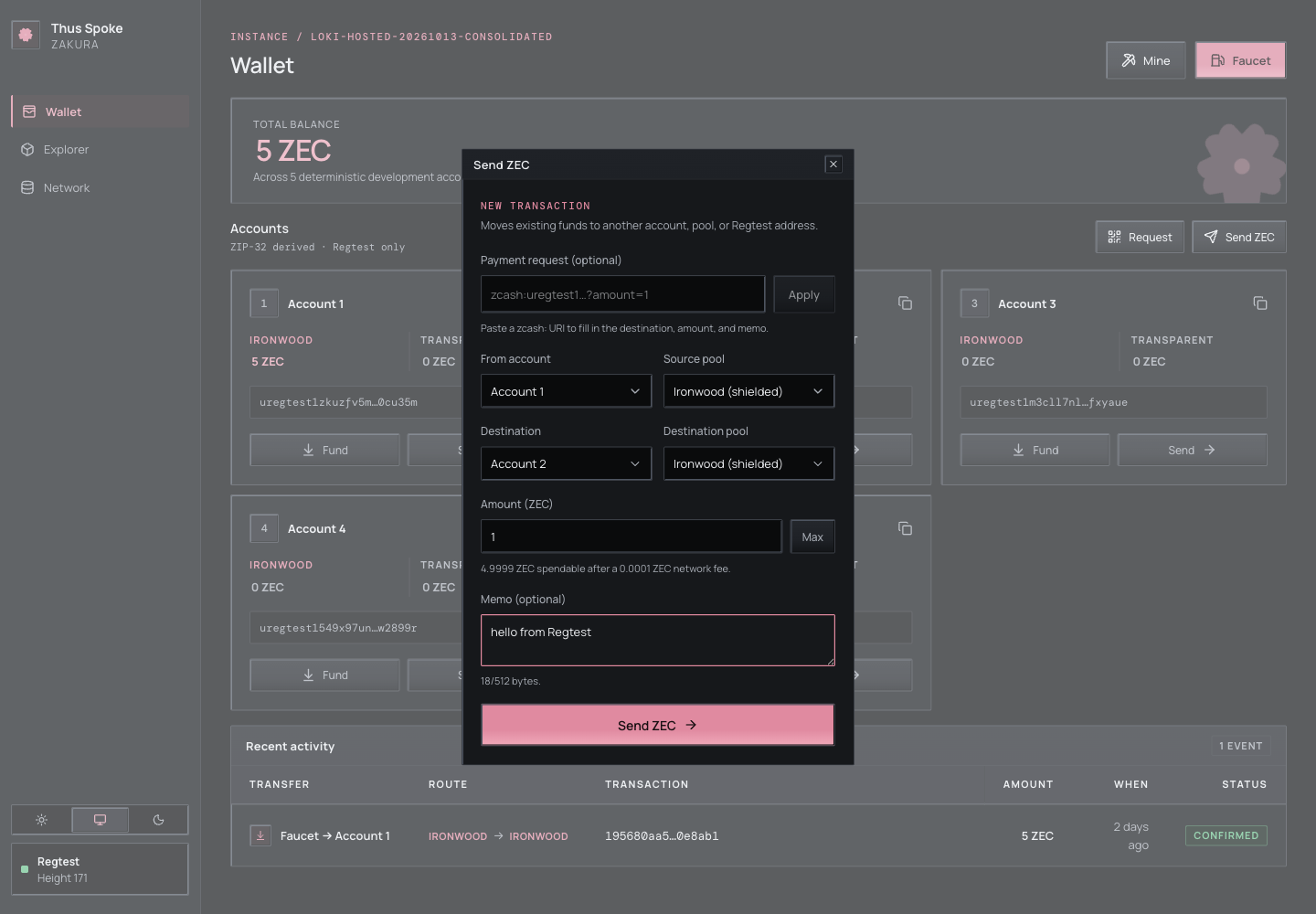
CLI equivalent:
ths wallet send --from 1 --to 2 --amount 1 --memo "hello from Regtest"
Inspect the returned txid, status, and any confirming block hash, then the accounts snapshot for the actual pool balances and source fee. Choose either the UI action or the command for one intended payment.
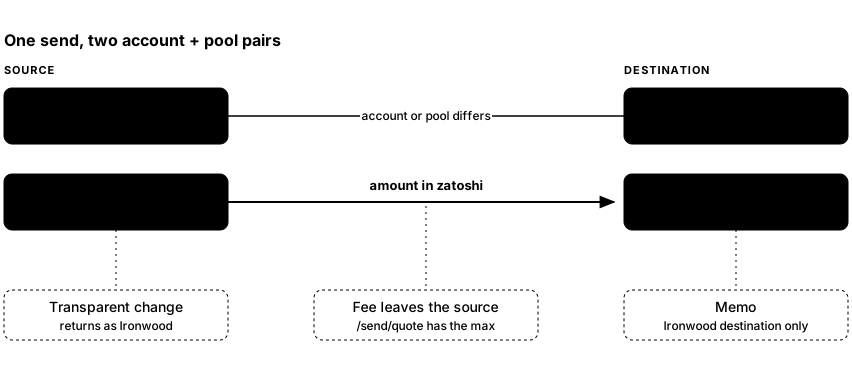
- Pair 1 — where the money comes from. The source account is one of
1–5, and the source pool decides what is spent:
transparentspends that account’s UTXOs,ironwoodspends its shielded notes. - Pair 2 — what the receiver gets. Choose a Destination account
from 1–5, or select Other address and fill in Destination address.
For an account,
ironwoodpays its unified address andtransparentpays its t-address. The account may match the source when the pools differ. For Other address, use a transparent Regtest address or a unified Regtest address with an Ironwood receiver. The dialog chooses Destination pool from the address and the server validates it before sending. - The fee is on top of the amount, taken from the source account. That
is why
max_zatoshifrom the quote, not the balance, is the ceiling. - A transparent source rarely spends exactly. Transparent inputs must be spent whole, so the change comes back as an Ironwood note in the source account rather than as transparent change.
- Only an Ironwood destination carries a memo. A transparent output has no memo field at all.
The memo is encrypted to the recipient and limited to 512 UTF-8 bytes, not 512 characters. The UI disables the field for Transparent destinations; the server rejects a present memo there too.
The server stores the supplied memo in its idempotency record to compare replayed requests. An absent memo and an explicit empty text memo are different payment identities. To read a payment’s memo, open its transaction ID from Recent activity and select Decrypt actions. ZIP-321 parsing can return a memo supplied in its input; that does not read a memo from the chain.
GET /api/v1/accounts provides a unified_full_viewing_key for each user
account. An external wallet imported with that key can decrypt memos sent to
that account. Public Explorer data reveals neither memo plaintext nor private
Ironwood recipient addresses; the Explorer’s Decrypt actions button,
described below, shows what this environment’s wallet recorded.
Create a request for another sender
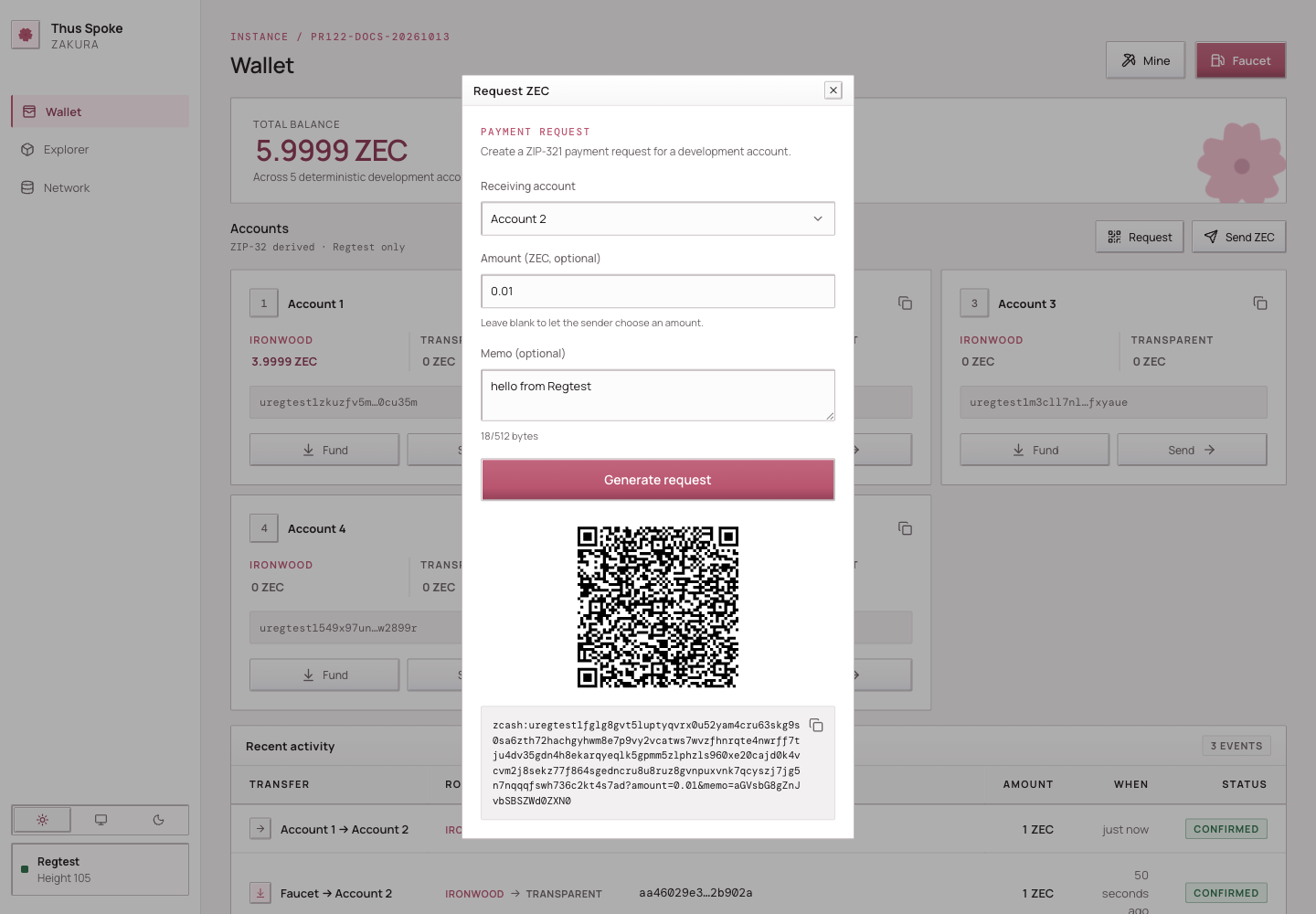
- On Wallet, select Request to open Request ZEC.
- Choose Receiving account, optionally enter Amount (ZEC, optional) and a memo, then select Generate request.
This calls POST /api/v1/zip321/request and displays a
copyable URI and QR code for that account’s unified address.
A blank amount lets the sender choose; this generates a request and moves no funds. Editing any field hides the generated URI and QR code while the values differ from those used to generate them. Restoring the same values shows the result again without regenerating. To create a request with different values, select Generate request again. Memos use the same 512-byte text limit. The memo encoded in the URI or QR code is readable to anyone holding the request; transaction memo encryption occurs only when an actual Ironwood payment is made. Generation does not read received transaction memos.
Payment request
Paste a single-payment zcash: URI into Payment request
(optional) and select Apply. The server resolves its address, pool,
optional amount, and text memo. Supply the amount when the request omits it.
Editing the URI disables Send until that revision is applied or the field is
cleared; a stale parse result cannot authorize the edited request. Editing the
transfer fields while Apply is pending also discards that result. Apply again
to replace the draft, or clear the request to continue with manual edits.
A pool conversion to try next
If you want to see a transparent source fund an Ironwood destination, use the transparent funds in Account 2:
ths wallet shield --from 2 --to 2 --amount 0.5
This sends 0.5 ZEC to Account 2’s Ironwood pool within the same account. The SDK selects
transparent inputs and pays a fee. Its change strategy can return any
remaining value to the source account’s Ironwood pool, so Account 2’s
transparent balance need not simply drop by 0.5 ZEC. Inspect both pools
afterward. The reverse operation is ths wallet unshield --from 2 --to 2 --amount 0.2. Both are allowed because the pools differ; a same-account
send with the same source and destination pool is rejected. See the CLI reference
for all pool options.
Look at the chain without confusing it with the wallet
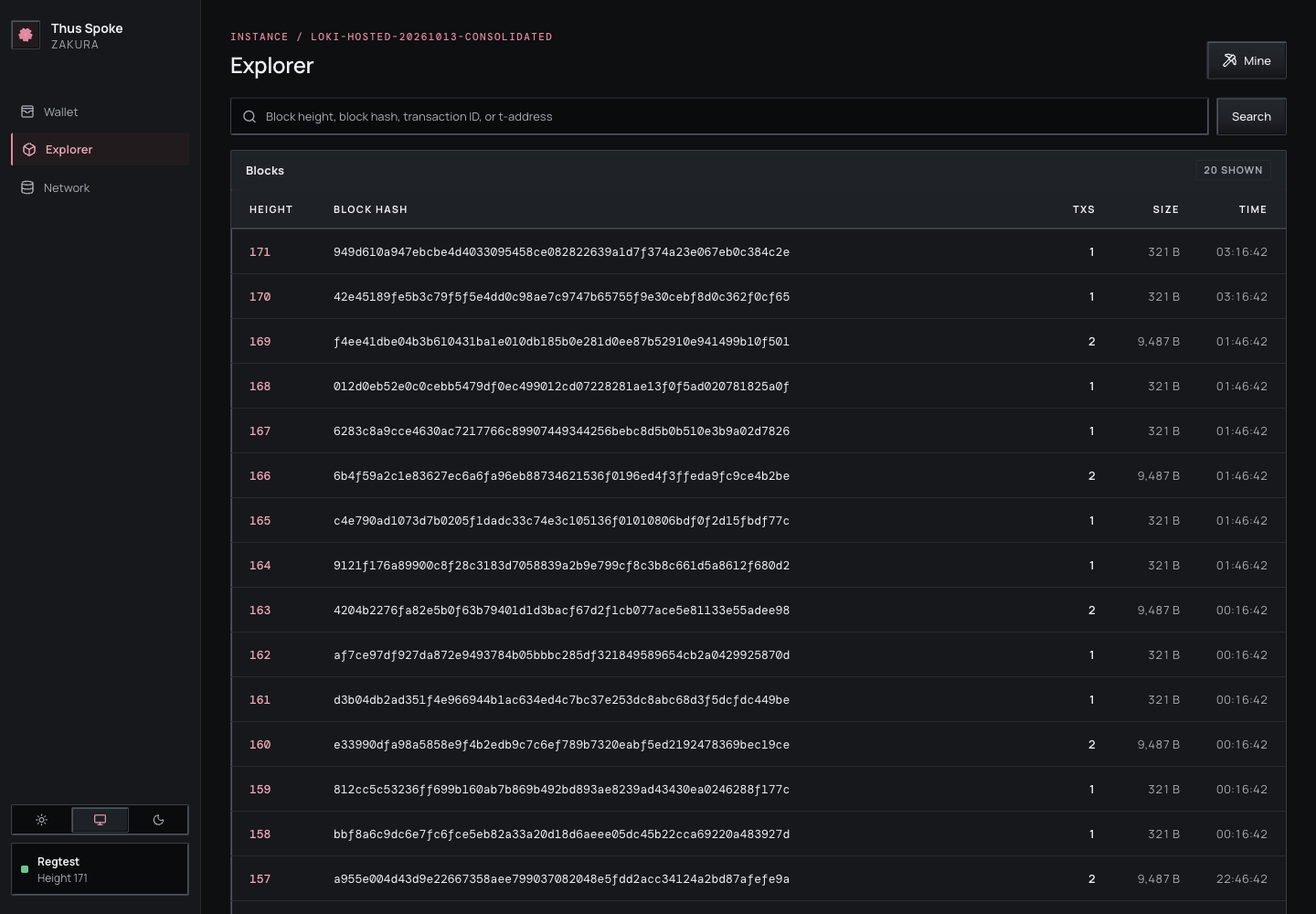
Explorer lists blocks and can search a height, block hash, transaction ID, or transparent address. Open your transaction ID from Recent activity. Transparent inputs and outputs are public chain data; Ironwood details are not exposed as the user-account transfer shown by Recent activity. The server’s activity record knows the development account IDs, while the Explorer follows the public chain.
Recent activity can be filtered by development account, activity kind, and status. The filters combine. The dashboard shows 10 entries by default; choose 10, 25, 50, or 100 and use the page controls to move through older activity. Last loads the remaining activity pages on demand before showing the oldest page. Activity keeps its first-seen position while it is prepared, confirmed, or affected by a rollback, so moving between pages does not repeat or skip it. If the selected cursor disappears or leaves the current filter, the dashboard reloads from the newest page.
A transaction with shielded actions has a Decrypt actions button on its
Ironwood actions row. It shows what this environment’s wallet recorded
about the transaction for accounts 1–5, below that row. It is local wallet
state, not public chain data, and is read only when you select the button.
Each output lists its pool and index, From, To, the memo, and the
value. From is an account, Faucet for a treasury payment, or
External; a shielded sender outside the accounts never reveals an address.
To is an account, or else the address the wallet recorded. Accounts link to
their account page and transparent addresses to their Explorer page; a unified
address outside the accounts has no public page. Change returned to the sending
account is marked Change; a non-text memo is shown as hex. Below the
outputs, the notes the accounts spent are grouped by account and pool. The
fee is the Fee row of the disclosure summary. A transaction none of the
accounts sent or received shows No local account is involved in this
transaction. A warning appears while the wallet has not fetched the full
transaction yet, because a memo can be missing until then, and when it could
not fetch it at all. A payment from outside the accounts appears only after it
is mined and the wallet has scanned its block. The same data is available from
ths wallet tx and GET /api/v1/transactions/{txid}/wallet; see Read what
the wallet recorded about a
transaction.
The Pending transactions panel lists transactions the node has received but has not yet included in a block. It appears only while at least one is waiting, and refreshes automatically, including when an external app broadcasts without advancing the chain. Open a transaction ID to inspect it before mining. Mine 1 block opens the existing mining controls with one block selected; confirm there to start the job. Once a transaction is mined, it leaves the pending list, and the panel disappears when nothing is left. A failed read shows an error instead of hiding the panel.
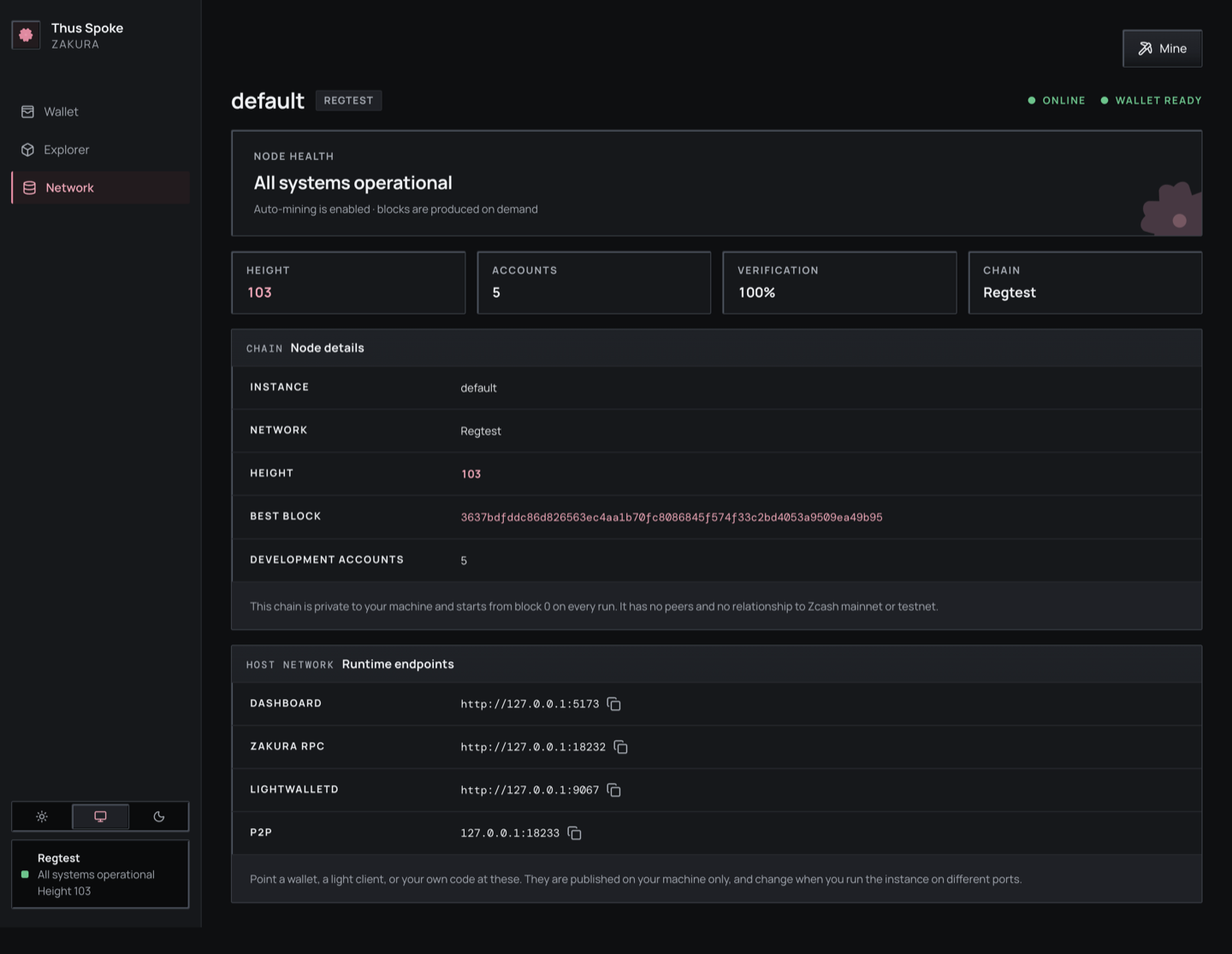
Network shows the node height, tip hash, account count, and published endpoints. If a transaction is recorded but the wallet balance has not caught up, follow the next chapter rather than computing a balance from Explorer.
What you learned: a payment chooses two account/pool pairs, and confirmation, activity, and wallet balance are related but separate observations. Next: mine a block and trace wallet synchronization.